> ## Documentation Index
> Fetch the complete documentation index at: https://docs.signupbreeze.com/llms.txt
> Use this file to discover all available pages before exploring further.
# Signing Up for an Event
> How to sign up for a volunteer shift — no account needed.
Signing up for a volunteer shift on SignUpBreeze takes about 30 seconds. You don't need to create an account.
## How to sign up
1. **Open the event link** — you'll get this from the organizer via email, text, social media, or by scanning a QR code on a flyer.
2. **Browse available shifts** — the event page shows a cover image, event title, date, and description, followed by a list of available shifts.
3. **Check availability** — each shift shows its name, an "Open" or "Full" badge, and a fill count with a progress bar (e.g. "1 of 5 filled").
4. **Tap Sign Up** — click the blue **Sign Up** button on the shift you want.
5. **Enter your info** — provide your name and email address.
6. **Confirm** — you'll see a confirmation page and receive a magic link via email.
No password to create, no account to manage.
## What you'll see on the event page
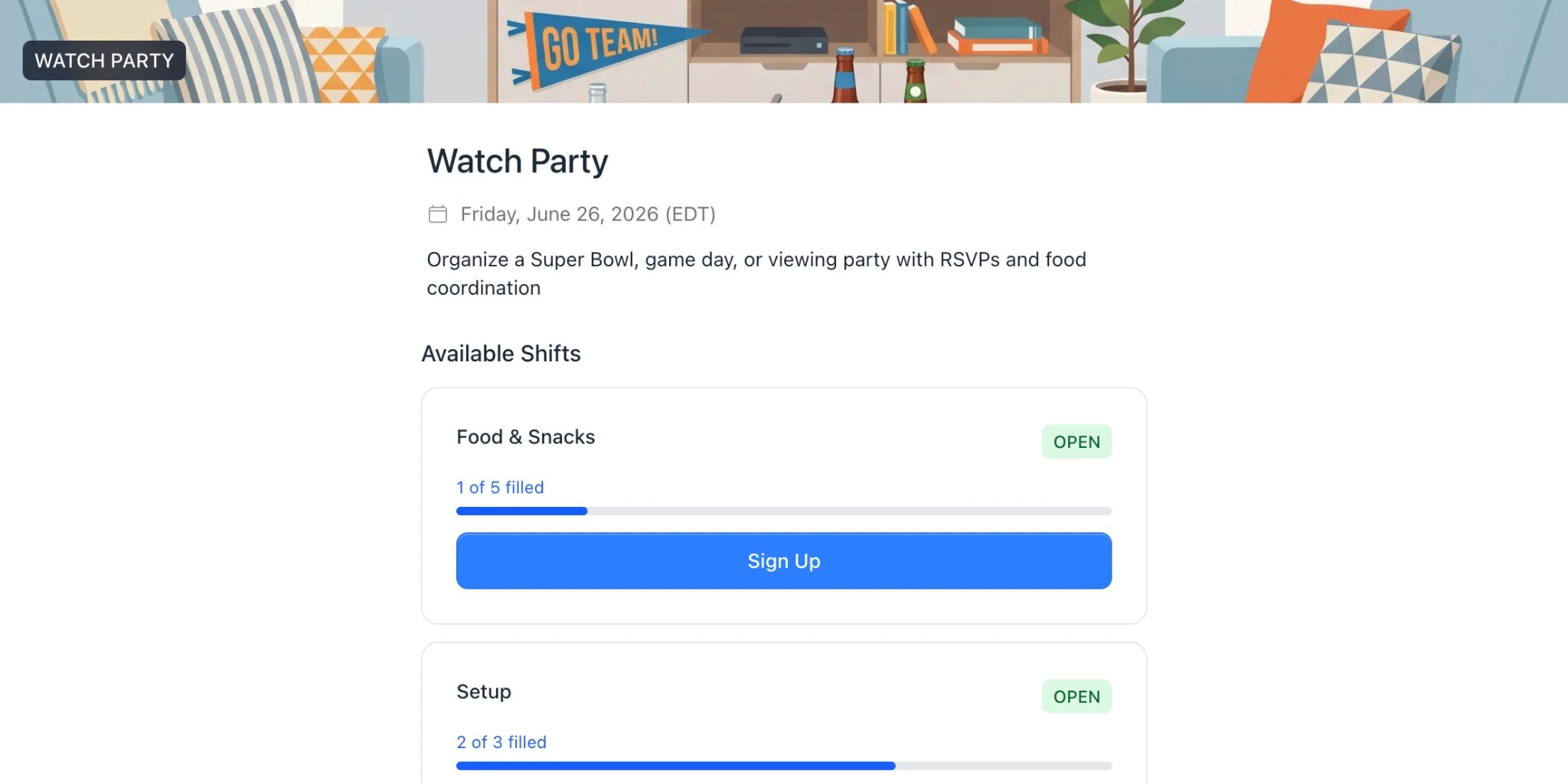 The event page includes:
* The event title, date (with timezone), and description
* A list of shifts with availability and "Sign Up" buttons
Shifts that are full won't have a Sign Up button — you can only sign up for shifts that still have open spots.
## After signing up
You'll be taken to a confirmation page showing your registration details. You'll also receive an email with a magic link that you can use to return to your confirmation at any time.
The event page includes:
* The event title, date (with timezone), and description
* A list of shifts with availability and "Sign Up" buttons
Shifts that are full won't have a Sign Up button — you can only sign up for shifts that still have open spots.
## After signing up
You'll be taken to a confirmation page showing your registration details. You'll also receive an email with a magic link that you can use to return to your confirmation at any time.