> ## Documentation Index
> Fetch the complete documentation index at: https://docs.signupbreeze.com/llms.txt
> Use this file to discover all available pages before exploring further.
# Managing Shifts
> How to add, edit, and organize shifts within your events.
Shifts are the individual roles or time blocks within an event that volunteers sign up for. Each shift has a name, a capacity, and a status.
## Viewing shifts
Navigate to your event and select the **Shifts & Registrations** tab. You'll see all shifts listed with their registrations.
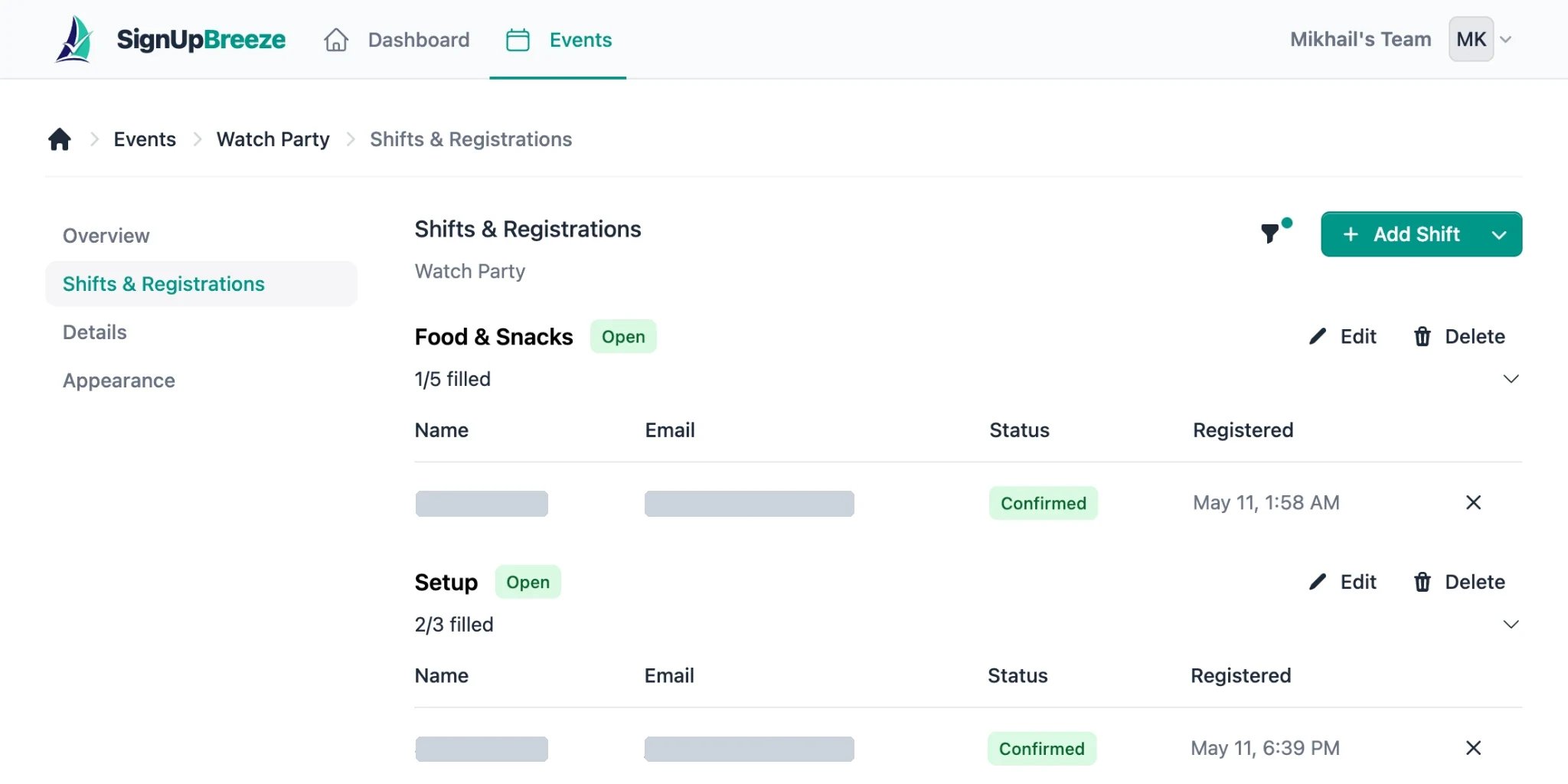 Each shift shows:
* **Shift name** — e.g. "Food & Snacks", "Setup", "Cleanup Crew"
* **Status badge** — "Open" (accepting signups) or "Full"
* **Fill count** — e.g. "1/5 filled" with a progress bar
* **Registrations table** — volunteers who signed up, with their name, email, status, and registration date
## Adding a shift
Click the **+ Add Shift** button in the top right of the Shifts & Registrations page. Fill in the shift name and the number of volunteer spots available.
If you created your event from a template, shifts are already pre-configured based on the template. For example, a "Watch Party" template comes with "Food & Snacks" and "Setup" shifts already created.
## Editing a shift
Click the **Edit** button next to any shift to update its name or capacity. Changes are saved immediately.
## Deleting a shift
Click the **Delete** button next to a shift to remove it. This will also remove any registrations associated with that shift.
## Shift status
Shifts are automatically marked as **Open** when they have available spots and **Full** when all spots are taken. On the public event page, full shifts no longer show a "Sign Up" button.
## Filtering
Use the filter icon at the top of the Shifts & Registrations page to narrow down what you see.
Each shift shows:
* **Shift name** — e.g. "Food & Snacks", "Setup", "Cleanup Crew"
* **Status badge** — "Open" (accepting signups) or "Full"
* **Fill count** — e.g. "1/5 filled" with a progress bar
* **Registrations table** — volunteers who signed up, with their name, email, status, and registration date
## Adding a shift
Click the **+ Add Shift** button in the top right of the Shifts & Registrations page. Fill in the shift name and the number of volunteer spots available.
If you created your event from a template, shifts are already pre-configured based on the template. For example, a "Watch Party" template comes with "Food & Snacks" and "Setup" shifts already created.
## Editing a shift
Click the **Edit** button next to any shift to update its name or capacity. Changes are saved immediately.
## Deleting a shift
Click the **Delete** button next to a shift to remove it. This will also remove any registrations associated with that shift.
## Shift status
Shifts are automatically marked as **Open** when they have available spots and **Full** when all spots are taken. On the public event page, full shifts no longer show a "Sign Up" button.
## Filtering
Use the filter icon at the top of the Shifts & Registrations page to narrow down what you see.