> ## Documentation Index
> Fetch the complete documentation index at: https://docs.signupbreeze.com/llms.txt
> Use this file to discover all available pages before exploring further.
# Creating Events
> How to create and configure events in SignUpBreeze using templates or from scratch.
Events are the core of SignUpBreeze. Each event represents something you need volunteers for — a bake sale, park cleanup, watch party, fundraiser, or anything else.
## Starting a new event
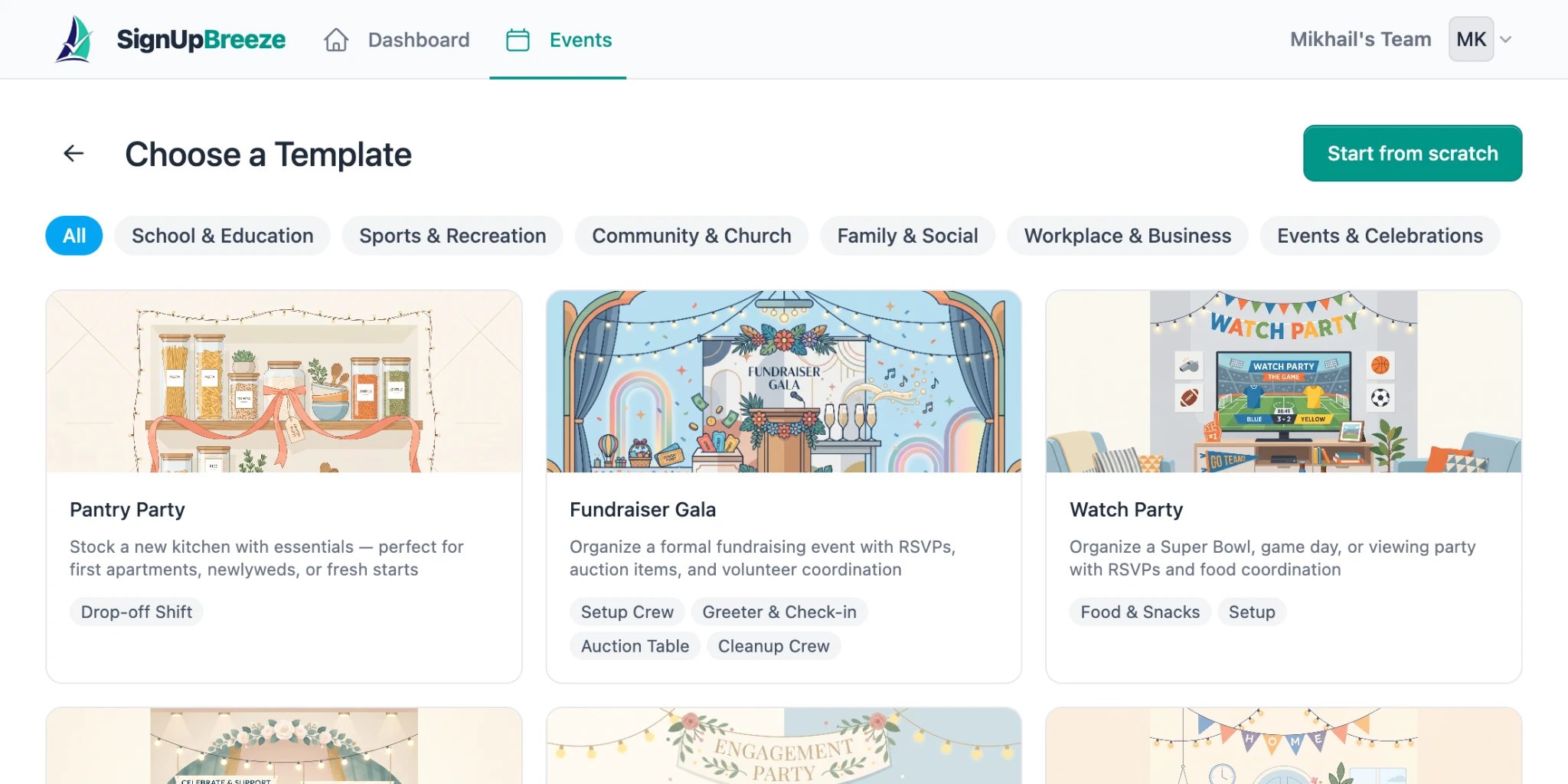
From your dashboard or the Events page, click the **+ Create Event** button. You'll see the template picker.
 ### Using a template
SignUpBreeze comes with a library of predefined templates organized by category:
* **School & Education** — field day, classroom volunteer, book fair
* **Sports & Recreation** — tournament, practice schedule, team events
* **Community & Church** — food drive, worship service, community cleanup
* **Family & Social** — watch party, engagement party, baby shower
* **Workplace & Business** — team building, office events
* **Events & Celebrations** — fundraiser gala, holiday party, graduation
Each template includes a cover image, description, pre-configured shifts, and an event badge. Click any template to create an event based on it — the title, description, shifts, cover image, and appearance settings are all pre-filled for you.
### Starting from scratch
Click the **Start from scratch** button in the top right to create a blank event. You'll fill in everything yourself.
## Event details
Whether you chose a template or started from scratch, you can edit all event details from the **Details** tab:
### Using a template
SignUpBreeze comes with a library of predefined templates organized by category:
* **School & Education** — field day, classroom volunteer, book fair
* **Sports & Recreation** — tournament, practice schedule, team events
* **Community & Church** — food drive, worship service, community cleanup
* **Family & Social** — watch party, engagement party, baby shower
* **Workplace & Business** — team building, office events
* **Events & Celebrations** — fundraiser gala, holiday party, graduation
Each template includes a cover image, description, pre-configured shifts, and an event badge. Click any template to create an event based on it — the title, description, shifts, cover image, and appearance settings are all pre-filled for you.
### Starting from scratch
Click the **Start from scratch** button in the top right to create a blank event. You'll fill in everything yourself.
## Event details
Whether you chose a template or started from scratch, you can edit all event details from the **Details** tab:
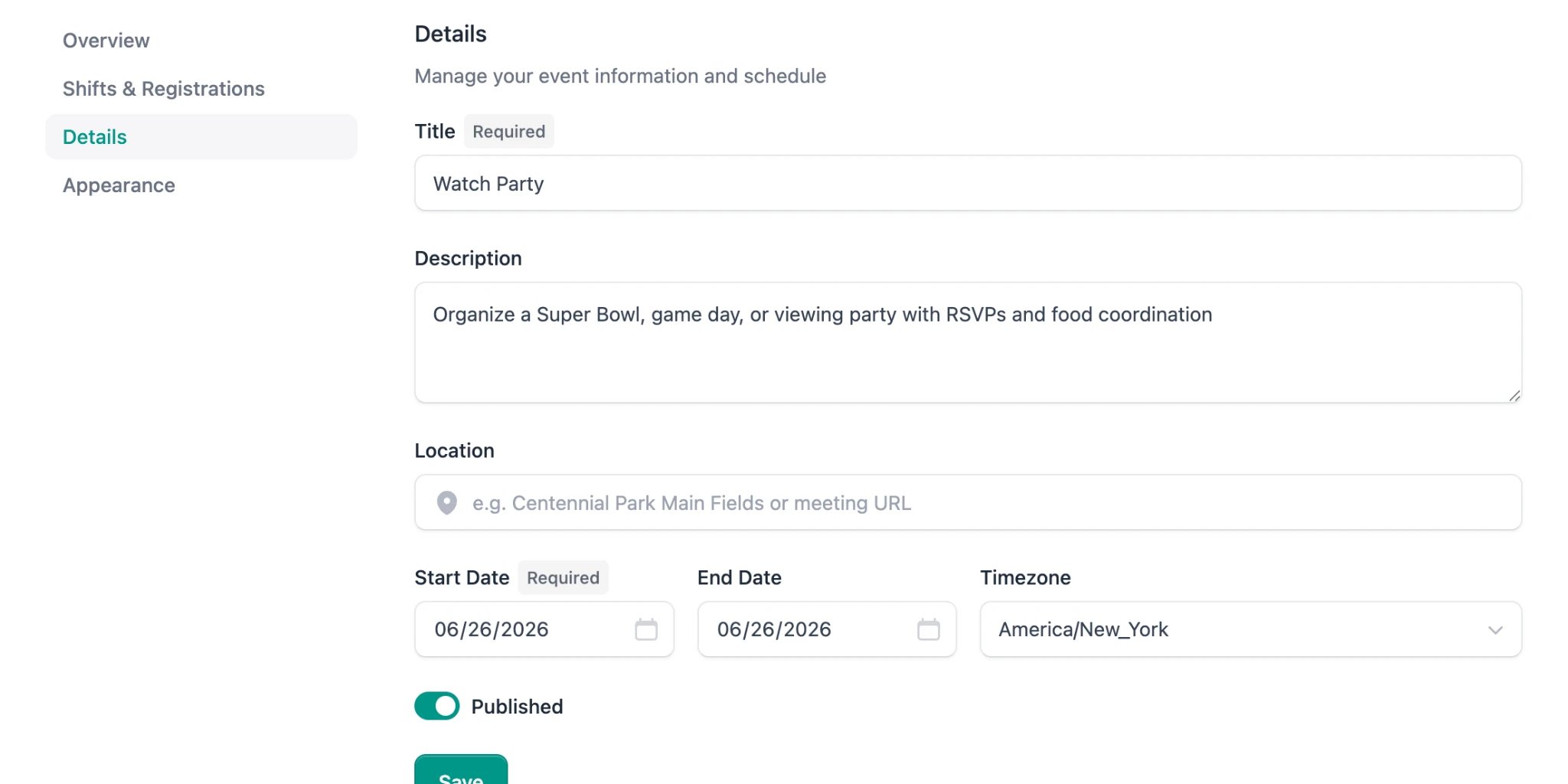 * **Title** (required) — the name of your event
* **Description** — what volunteers need to know (what to bring, expectations, parking, etc.)
* **Location** — a physical address or meeting URL (placeholder hint: "e.g. Centennial Park Main Fields or meeting URL")
* **Start Date** (required) — when the event begins
* **End Date** — when it ends (can be the same day for single-day events)
* **Timezone** — defaults to your local timezone, can be changed via dropdown
* **Published** — toggle to make the event visible on its public page
Click **Save** to apply your changes.
## Publishing your event
Events are unpublished by default. When you're ready to share your event with volunteers, go to the **Details** tab and turn on the **Published** toggle, then click **Save**.
Once published, a green "Published" badge appears on the event overview, and the public event page becomes accessible to anyone with the link.
* **Title** (required) — the name of your event
* **Description** — what volunteers need to know (what to bring, expectations, parking, etc.)
* **Location** — a physical address or meeting URL (placeholder hint: "e.g. Centennial Park Main Fields or meeting URL")
* **Start Date** (required) — when the event begins
* **End Date** — when it ends (can be the same day for single-day events)
* **Timezone** — defaults to your local timezone, can be changed via dropdown
* **Published** — toggle to make the event visible on its public page
Click **Save** to apply your changes.
## Publishing your event
Events are unpublished by default. When you're ready to share your event with volunteers, go to the **Details** tab and turn on the **Published** toggle, then click **Save**.
Once published, a green "Published" badge appears on the event overview, and the public event page becomes accessible to anyone with the link.